Key Takeaways
- Use the correct Go High Level login portal: Log in through app.gohighlevel.com or your agency’s white-label domain to access the correct dashboard and permissions.
- Enable MFA and secure credentials to avoid lockouts: Multi-factor authentication, strong passwords, and role-based access reduce login issues and protect sensitive client data.
- Persistent GoHighLevel login problems signal deeper setup issues: Ongoing access errors often stem from permission conflicts or account structure problems that require expert support.
Locked out of the system that runs your sales, marketing, and operations? A failed Go High Level login isn’t a minor inconvenience; it’s a hard stop. When teams can’t access dashboards, apps, or client accounts, momentum disappears and revenue-impacting work grinds to a halt. What should be a simple sign-in can quickly become a daily source of friction if it isn’t handled correctly.
At Automize, we work inside GoHighLevel every day. We manage agency accounts, configure permissions, troubleshoot access issues, and support teams using the platform at scale. Our hands-on experience with GoHighLevel logins, dashboards, mobile access, and account structures provides us with a clear, practical understanding of how the system behaves in real-world operating environments, not just how it’s supposed to work.
In this article, we’ll break down everything you need to know about Go High Level login, including the official login page, desktop and app access, common login issues, and how to resolve them quickly so your team can stay productive and in control.
Schedule a GoHighLevel Consultation today!
Navigating The Official Go High Level Login Page For Desktop
A standard access point for GoHighLevel is through the web-based login portal at app.gohighlevel.com; however, many agencies use a branded, whitelabeled app domain (such as app.yourdomain.com) configured through their agency settings. This browser-based interface offers full functionality for managing your agency account, client sub-accounts, and all platform features, eliminating the need for software installation.
Accessing the Standard Login Portal
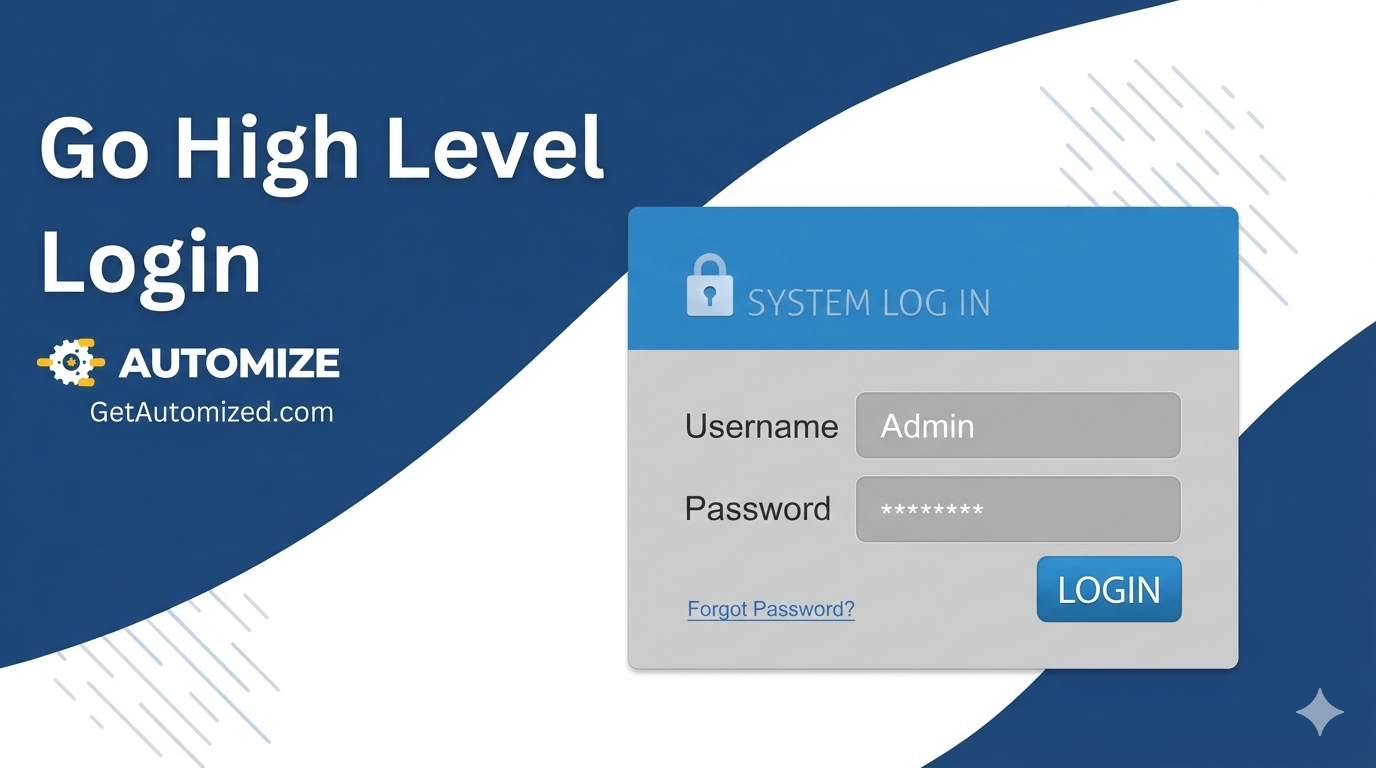
Open your preferred web browser and navigate to app.gohighlevel.com or your agency’s custom domain. The GoHighLevel login page displays a clean interface requesting your email address and password. Enter the credentials associated with your agency account. These are the details you created during initial registration or received from your account administrator. Click the “Sign In” button to authenticate and access your dashboard.
Understanding Multi-Factor Authentication Requirements
If your account has MFA enabled, you’ll receive a verification prompt after entering your password. This additional security layer requires a time-sensitive code sent to your registered mobile device or authentication app. Enter the verification code within the specified timeframe to complete the authentication process. This process prevents unauthorized access even if someone obtains your password.
Selecting Between Agency and Sub-Account Views
After a successful GoHighLevel sign-in, you may see options to access your agency dashboard or specific client sub-accounts. Your agency’s view provides oversight of all clients, billing, and administrative functions. Individual sub-account access focuses on that specific client’s campaigns, contacts, and workflows. Select the appropriate view based on your immediate task requirements.

Managing Your Business On The Go With The Go High Level App Login
Mobile access to GoHighLevel enables real-time client management, campaign monitoring, and communication from anywhere, allowing you to stay connected and responsive from any location. The native mobile applications for iOS and Android provide core functionality optimized for smartphone and tablet interfaces.
Downloading and Installing the Mobile Application
Visit the Apple App Store for iPhone/iPad, or the Google Play Store for Android devices, and search for “GoHighLevel.” Download the official application published by GoHighLevel LLC. Install the app according to the standard procedures for your device. Once the installation is complete, launch the application from your home screen.
Signing In Through the Mobile Interface
The GoHighLevel app’s login screen mirrors the desktop experience, featuring fields for email and password. Enter your existing account credentials, the same ones used for browser access. If MFA is enabled, you’ll be prompted for a verification code through your registered method. The mobile interface automatically remembers your device after the first successful authentication, streamlining future logins.
Leveraging Biometric Authentication Options
Modern smartphones support fingerprint and face recognition for secure access to apps. After your initial login, the GoHighLevel mobile apps prompt you to enable biometric authentication. This feature provides instant access without requiring repeated password entry, while maintaining security standards. Enable this option in your device settings and the GoHighLevel app preferences.
Accessing Your Custom Brand Via GoHighLevel Dashboard Login
White-label capabilities in GoHighLevel allow agencies to create custom-branded login portals for clients. This professional presentation reinforces your agency brand while providing clients seamless access to their marketing tools.
Setting Up Custom Domain Login URLs
Configure your branded login portal by connecting a custom domain through your GoHighLevel agency settings. Navigate to Agency View, then Settings → Company → Whitelabel to access the white-label configuration section and specify your desired subdomain (e.g., app.youragency.com). Complete DNS verification by adding a CNAME record through your DNS provider, HighLevel will provide the exact target (typically whitelabel.ludicrous.cloud for the desktop web app).
HighLevel may automatically detect your DNS provider and configure records for you, or you can set them up manually. Once verification is successful, your clients will access their accounts through your branded URL instead of the standard GoHighLevel domain.
Managing Client Sub-Account Access
Client login credentials are separate from your agency access. When creating client sub-accounts, you establish unique email addresses and passwords for each client. These credentials enable clients to log in to their specific account view without accessing your agency dashboard or other client data. Provide clients with their custom login URL and credentials through secure channels.
Maintaining Branded Mobile App Experiences
GoHighLevel offers white-label and mobile branding options, with availability and customization capabilities varying depending on your plan and configuration. Check your agency settings or consult with HighLevel support to confirm what branding elements you can customize for mobile app experiences. This comprehensive branding creates a cohesive experience across all access points while maintaining the security and functionality of the platform.
Troubleshooting Common GoHighLevel Login Issues And MFA Errors
Authentication problems can disrupt business operations and client management. Understanding frequent GoHighLevel login issues and their solutions helps minimize downtime and maintain productivity.
Resolving Browser Compatibility Problems
Some login difficulties stem from browser cache conflicts or outdated versions. Clear your browser cache and cookies specific to gohighlevel.com domains (or your whitelabel domain). Update your browser to the latest version, as GoHighLevel optimizes performance for current releases of Chrome, Firefox, Safari, and Edge. If problems persist, try accessing the login page through an incognito or private browsing window to isolate extension conflicts.
Fixing Multi-Factor Authentication Code Failures
MFA codes expire quickly for security purposes. If your verification code is rejected, request a new code rather than repeatedly entering the same one. Ensure your mobile device clock is synchronized with network time, as time discrepancies can invalidate codes. If you’re locked out due to MFA issues, use the backup codes provided during MFA setup or contact GoHighLevel support for account recovery.
Addressing Password Reset and Recovery Scenarios
Failed login attempts often result from forgotten or mistyped passwords. Click the “Forgot Password” link on the GoHighLevel login page to initiate the password recovery process. Enter your registered email address and check your inbox for reset instructions. Follow the secure link provided to create a strong password following the on-screen requirements and platform security guidelines.
If you encounter access problems at this stage, reviewing the Troubleshooting GoHighLevel login guide can help identify common causes, such as browser conflicts, credential errors, or account restrictions.

Best Practices For Securing Your GoHighLevel Sign-In Credentials
Your GoHighLevel account contains sensitive client data, payment information, and proprietary business processes. Implementing robust security measures protects both your agency and your clients’ interests.
Creating Strong, Unique Passwords
Avoid common passwords, dictionary words, or predictable patterns. Generate complex passwords that combine uppercase and lowercase letters, numbers, and symbols, with a sufficient length to meet security requirements.
Use unique passwords for GoHighLevel that differ from those used on other platforms; credential reuse across services increases vulnerability if any single service is compromised. Password managers securely store and generate strong credentials without requiring memorization.
Enabling and Managing Multi-Factor Authentication
MFA dramatically reduces unauthorized access risk by requiring physical device possession alongside password knowledge. Enable MFA through your GoHighLevel account security settings. Choose authentication apps like Google Authenticator or Authy rather than SMS when possible, as app-based codes are more secure. Save backup codes in a secure location separate from your primary device.
Implementing Team Access Controls and Permissions
Limit account access based on team member roles and responsibilities. GoHighLevel offers granular permission settings that restrict access to specific features, client accounts, or administrative functions. Regularly audit team member access and remove credentials for departed employees immediately. Require all team members to use strong passwords and MFA regardless of their permission level.
Scaling Your Agency Operations Beyond The Login Dashboard
Efficient access management is foundational, but maximizing GoHighLevel’s potential requires strategic automation setup and workflow optimization.
Automating Client Onboarding Workflows
Configure automated sequences that trigger when new clients are added to your system. These workflows can send welcome emails, create initial campaigns, assign team members, and schedule onboarding calls without manual intervention. Automation reduces human error and ensures consistent client experiences regardless of team size.
Integrating Third-Party Tools for Enhanced Functionality
The platform connects with numerous external platforms through native Go High Level integrations and direct connections. Link your payment processors, scheduling tools, and analytics systems to centralize data. For those looking to build custom solutions, leveraging the Go High Level API allows for even deeper synchronization between your tech stack.
Monitoring Dashboard Metrics for Business Growth
Your GoHighLevel dashboard login grants access to performance metrics, client engagement data, and revenue tracking. Establish regular review schedules to analyze these metrics and identify opportunities for optimization. Track key performance indicators like conversion rates, campaign effectiveness, and client retention to make data-driven decisions about agency strategy and resource allocation.
When To Get Expert Help With Go High Level Login Problems
Occasional login hiccups are normal, but persistent Go High Level login problems are a warning sign that something deeper needs attention. If access issues continue to interrupt daily operations, delay client work, or create confusion across your team, it’s time to involve an expert.
You should seek professional support when login issues stem from complex permission structures, multiple sub-accounts, two-factor authentication conflicts, or users being locked out despite correct credentials. These problems often arise in agencies managing several client accounts, shared access, or custom configurations, and they can’t always be resolved with basic troubleshooting.
At Automize, we work directly inside GoHighLevel environments to diagnose and resolve login and access issues quickly. We identify the root cause, correct the account and user settings, and ensure your team has reliable, secure access moving forward. More importantly, we help prevent repeat issues by aligning permissions, workflows, and system architecture properly.

Final Thoughts
The GoHighLevel login is more than just a gateway; it is the starting point for your daily agency operations. While most access hurdles can be cleared with basic troubleshooting, such as cache resets or time-syncing for MFA, persistent friction often signals a need for a better system architecture. Ensuring that your team and clients have seamless, branded access is vital for maintaining professional credibility and operational momentum. At Automize, we specialize in helping you overcome these entry-level hurdles, allowing you to focus on the high-level automations and scaling strategies that drive revenue.
Frequently Asked Questions About Go High Level Login
What should I do if the GoHighLevel login page won’t load?
Clear your browser cache, disable browser extensions temporarily, and try accessing the page through a different browser or incognito window. If the issue persists, check GoHighLevel’s status page for platform-wide outages or contact their support team for assistance.
How can I reset my GoHighLevel password if I’ve lost access?
Click “Forgot Password” on the login page, enter your registered email address, and follow the reset link sent to your inbox. If you no longer have access to that email account, please contact GoHighLevel support with the account verification information to request manual recovery assistance.
How do I use the Go High Level app login for iPhone and Android?
Download the official GoHighLevel app from the App Store or Google Play Store, launch the application, and enter your existing account credentials. Enable biometric authentication in app settings for faster future access while maintaining security.
Is there a dedicated GoHighLevel desktop app for Windows and Mac?
GoHighLevel operates primarily as a web-based platform accessible through browsers. While there’s no native desktop application, you can create browser shortcuts or use tools like Fluid (Mac) or WebCatalog to create standalone web app experiences.
Can I stay logged into the GoHighLevel app on multiple devices?
Yes, you can maintain active sessions across multiple devices simultaneously. Each device authenticates independently, and logging in on a new device doesn’t automatically log out existing sessions unless you explicitly sign out or reset your password.
What should I do if I suspect that my GoHighLevel sign-in details have been compromised?
Immediately change your password through account settings, review recent login activity for unauthorized access, enable or reset multi-factor authentication, and audit team member permissions. Contact GoHighLevel support to report the security concern and review additional protective measures.