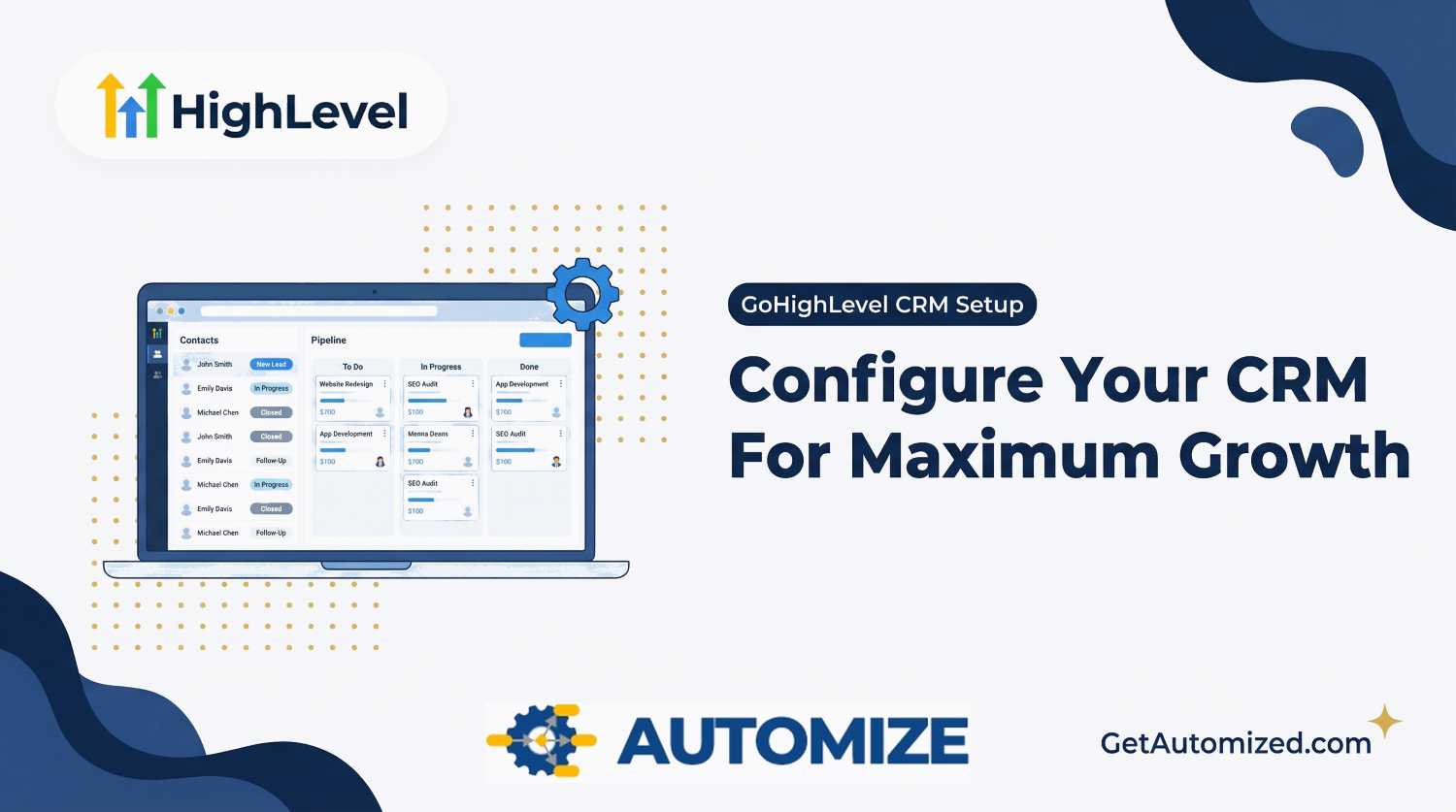
GoHighLevel CRM Setup
When you first log into a new GoHighLevel (GHL) account, the sheer volume of features can be overwhelming. You have funnel builders, email marketing, SMS automation, calendars, and pipelines all staring back at you. It is tempting to immediately start building landing pages or launching campaigns. But if you do that before completing a proper GoHighLevel CRM setup, you are building a house on a cracked foundation.
Your CRM (Customer Relationship Management) system is the central nervous system of your business. It dictates how data flows, how leads are tracked, and how your sales team operates. According to Salesforce, a properly implemented CRM can increase sales by up to 29% and sales productivity by 34%. But that only happens when the system is configured correctly.
In this guide, we will walk through the critical steps of a professional GoHighLevel CRM setup, ensuring your account is optimized for data integrity, automation, and scalable growth.
Step 1: Foundational Account Configuration
Before importing a single contact, you must configure the backend settings of your GHL sub-account. These settings govern how your system communicates with the outside world.
Business Profile and Time Zones
Start by filling out your complete Business Profile. Ensure your company name, address, and contact information are accurate, as these details are automatically pulled into email footers for CAN-SPAM compliance. Crucially, set your correct time zone. If your time zone is incorrect, your automated emails, SMS messages, and calendar bookings will trigger at the wrong times, leading to missed appointments and frustrated prospects.
Domain Authentication (Email and Web)
This is where many DIY setups fail. You must authenticate your sending domain (e.g., mail.yourdomain.com) using Dedicated Domain settings in GHL (often via Mailgun or LeadConnector). This requires adding TXT, CNAME, and MX records to your DNS provider. Without this step, your emails will land in spam folders. Similarly, you must connect your primary web domain so your landing pages and funnels are branded correctly.
Step 2: Structuring Your Contact Data
A CRM is only as good as the data it holds. The default contact record in GoHighLevel captures basic information (Name, Email, Phone), but your business likely needs more specific data to qualify leads effectively.
Custom Fields
Custom fields allow you to capture data unique to your sales process. If you are a roofing company, you might need a custom field for “Roof Age.” If you are a B2B SaaS company, you might need “Annual Revenue” or “Current Software Stack.” Create these fields before importing contacts or building forms, so your data has a place to live.
Tags and Smart Lists
Tags are the easiest way to segment your database. Establish a clear tagging nomenclature from day one. For example:
- Status Tags: Lead, Customer, Past Client
- Source Tags: Source: Facebook Ad, Source: Organic Search
- Action Tags: Action: Attended Webinar, Action: Downloaded Ebook
Once your tags and custom fields are set up, use Smart Lists to create dynamic, saved filters. A Smart List can automatically show you all “Hot Leads” who have a specific tag and have interacted with your content in the last 7 days.
Step 3: Pipeline and Opportunity Management
Contacts are people; opportunities are potential revenue. Your pipeline is the visual representation of your sales process.
A common mistake is creating a pipeline that is too complex. Your pipeline stages should represent distinct, measurable actions in the sales journey. A standard, highly effective pipeline structure looks like this:
- New Lead: Form submitted, but no contact made.
- Attempted Contact: Initial automated outreach sent.
- Appointment Booked: Call scheduled on the calendar.
- No Show: Prospect missed the call (triggers a re-booking automation).
- Proposal Sent: Pricing or contract delivered.
- Won/Lost: The final outcome of the deal.
For a deep dive into pipeline strategy, read our guide on GoHighLevel Pipeline Setup.
Step 4: Connecting Communication Channels
A modern CRM must centralize all communication. GoHighLevel’s “Conversations” tab is designed to be the single inbox for your entire business, but it requires proper integration.
SMS and Phone Configuration
Purchase a dedicated phone number through GHL’s Twilio/LeadConnector integration. Ensure you complete the A2P 10DLC registration process immediately. This is a mandatory telecom industry requirement for businesses sending SMS messages in the US. Without A2P registration, your text messages will be blocked by carriers.
Social Media Integrations
Connect your Facebook Business Page, Instagram account, and Google Business Profile in the Integrations tab. This routes all Facebook Messages, Instagram DMs, and Google My Business chats directly into your GHL Conversations inbox, allowing your team to respond to leads from any platform without leaving the CRM.
Step 5: Essential Core Automations
With the foundation built, you can now implement the core automations that make GoHighLevel a true revenue engine. While complex funnels come later, every CRM setup should include these three baseline workflows:
- The Lead Capture Sequence: When a new contact is created via a form or integration, this workflow immediately applies a “New Lead” tag, creates an Opportunity card in the first stage of your pipeline, and sends an internal notification to your sales team.
- The Missed Call Text Back: If someone calls your GHL phone number and you don’t answer, this automation instantly sends them a text message. This simple feature can save thousands of dollars in lost business.
- The Appointment Reminder Sequence: Once a lead books a call, this workflow sends automated confirmations and reminders via email and SMS, drastically reducing your no-show rate. Learn more about this in our GoHighLevel Appointment Funnel guide.
Why Professional CRM Setup Matters
Setting up GoHighLevel correctly is not a weekend project; it is a strategic implementation. When your custom fields, tags, pipelines, and domains are aligned, your reporting becomes perfectly accurate. You can track exactly how much revenue a specific Facebook ad generated, or exactly how many leads converted from a specific landing page.
To understand how to leverage this data, check out our article on GoHighLevel Reporting and Analytics.
If you are struggling to configure your account, or if your current setup feels messy and disconnected, it is time to bring in an expert. At Automize, we specialize in architecting GoHighLevel systems that scale. We handle the technical heavy lifting—from A2P registration to complex API integrations—so you can focus on closing deals.
Book your free consultation with Automize today, and let’s build a CRM that actually works for your business.
Frequently Asked Questions (FAQ)
How long does a proper GoHighLevel CRM setup take?
A basic technical setup (domains, phone numbers, integrations) can take a few days, largely due to approval times for A2P 10DLC registration. A comprehensive setup that includes custom pipelines, tags, and core automations typically takes 1 to 2 weeks.
What is A2P 10DLC in GoHighLevel?
A2P 10DLC (Application-to-Person 10-Digit Long Code) is a telecom industry standard that requires businesses to register their brand and SMS use cases. It is mandatory for sending text messages to US numbers through GoHighLevel to prevent carrier filtering and spam blocking.
Can I import my existing contacts from another CRM into GoHighLevel?
Yes. You can export your contacts from your old CRM as a CSV file and import them into GoHighLevel. It is crucial to map your custom fields correctly during the import process to ensure no data is lost.
Do I need a third-party email provider with GoHighLevel?
GoHighLevel uses LeadConnector (powered by Mailgun) natively, which is sufficient for most users. However, if you have specific deliverability needs or existing infrastructure, you can integrate your own SMTP provider like SendGrid or an external Mailgun account.